
Introduction

Optimize your warehouse picking and order processing. In the hectic environment of a warehouse, it is crucial to have a streamlined and efficient process for order picking. Our Order Picking List Plugin brings order to the chaos by providing an organized system for managing the collection of sales order lines based on current stock availability.
Here are the key features and benefits:
- Create Order Picking Lists Screen: Managers get an overview of all sales order lines for which stock is available and can be delivered.
- Advanced Filtering and Search Functions: Filter and search on various fields such as warehouse, location, delivery date, and delivery address to accurately determine what needs to be picked.
- Automatic Pick List Creation: Automatically create pick lists per customer or per order, which can then be printed, emailed, or sent in XML format to third parties, such as logistics service providers if warehousing is outsourced.
- Real-Time Picking Monitoring: Record in the “Order Picking List Overview Screen” whether the pick orders have been picked, note any discrepancies, and mark picking lists as ready for shipping.
- Seamless Posting: With posting, the sales order lines as mentioned on the order picking list are sent, and the stock is deducted, ensuring that stock levels are always accurately updated.
- Efficient Collaboration with External Partners: With the ability to share pick orders with external logistics partners, this plugin ensures smooth collaboration and timely execution of shipping processes.
- Integration: The order picking list seamlessly works with our transfer orders plugin and the BizBloqs WMS solution.
The Order Picking List Plugin is an essential addition to your Uniconta system, designed to maximize the efficiency and accuracy of your warehouse picking and order processing. Discover how this plugin can transform your warehouse management and promote a more streamlined, organized, and productive operation.
Where to find?
In Uniconta go to the ‘Inventory’ tab, here you can find the ‘Picking list’ module.
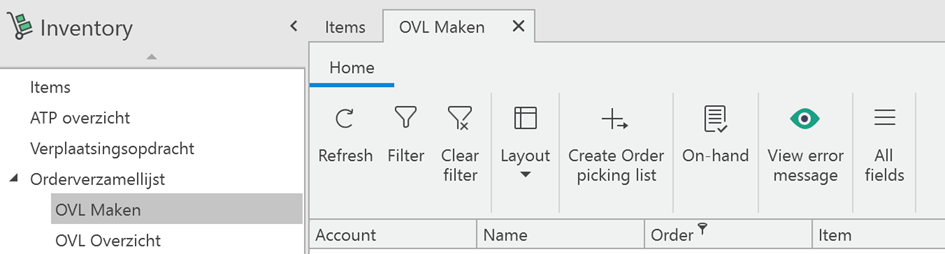
What to do with this module?
This module makes it possible to create picking lists from one or multiple orders. This could be useful because it gives the user an overview of all sales order lines for which stock is available and can be delivered. This also works hand in hand with the shipment module.
Order creation
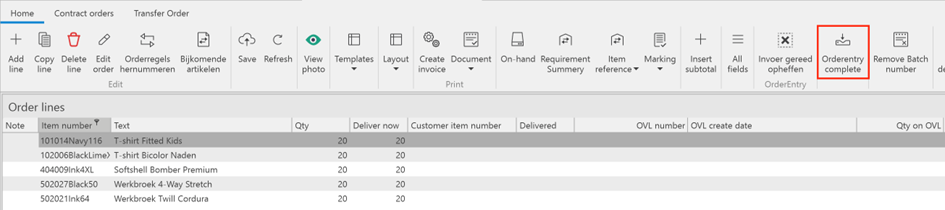
After the order is created and all the items are in the sales order, the user can click on the button called ‘Orderentry complete’. This will tell the system that the order is completed and ready to work with. Clicking this button is needed for the order to pop up in the picking list creation screen. Example order 1566764 for ‘Needle Fashion’ will be used in this manual.
Create Picking list
In this overview the user can see the sales order lines that are (partially) in stock and ready for shipment to the customer.
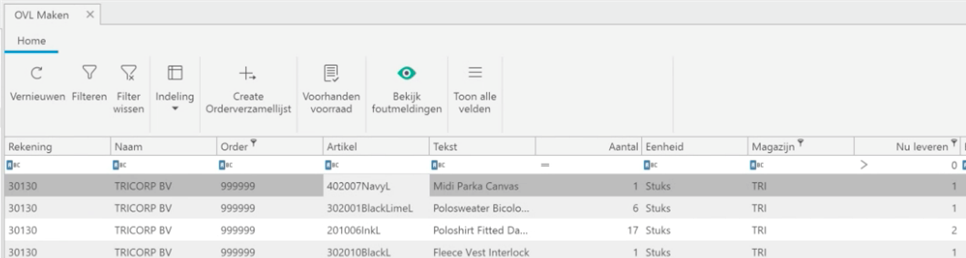
| Column | Description |
| Account | Acccount number of the customer connected to the orderline |
| Name | Account name of the customer connected to the orderline |
| Order | Order number of the order number that the orderline is part of |
| Item | Item number of the item that is ordered by the customer |
| Text | Item description of the item |
| Qty | Amount of the item ordered by the customer |
| Unit | Unit description of the item (Pcs, per box of 12, etc.) |
| Warehouse | Warehouse where the items are available for shipment |
| Deliver now | Amount of the item that is now ready for shipment |
| Batch | Number of a batch if the orderline is connected to a batch |
| Urgent | A checkbox if the orderline has priority, only for information. |
| Date | The date when the order should be shipped to the customer. |
| Calculated delivery date | The earliest date when the order can be delivered at the customer. |
This overview can be filtered so that:
- Only orders that are completed are visible.
- Items are stored in a warehouse.
- There is not yet an OVL number connected.
- There are no items delivered yet.
- The order needs shipment.
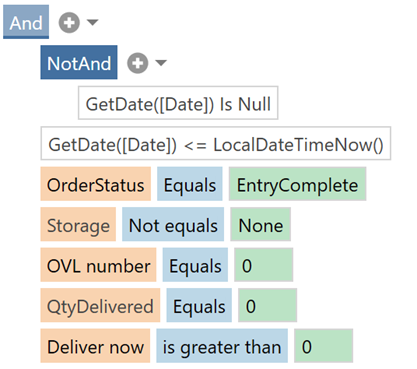
Next to that it is also possible to filter on warehouses, so only the products are visible that are in warehouses where the user can ship from.
The user can choose if orders should be divided over multiple picking lists or if they all should be in one picking list.
‘Deliver now’ can differ from ‘Qty’ because there are not enough items in stock to deliver the complete quantity of the order line.
Example scenarios (Filter possibilities):
- The user can filter on Account/Name so that all available order lines of a customer can be seen and fitted in a picking list.
- The user could also filter on City so that a picking list for one vehicle (that travels to that particular city) can be created.
- When the filter is set so that all order lines that should be in the picking list are visible, the user can click on the button ‘Create Order picking list’
For example, in the example order there are 5 items, let’s say that we want to make a picking list for 2 items. Both item numbers start with ‘50202’ so we filter on that and on the customer ‘Needle fashion’. This will shorten the list to 2 orderlines, shown underneath.

After clicking on Create Order picking list, the picking list will be created and the orderlines will be updated. Let’s say that we want two other items on a different picking list. In this case we filter again on item number and click on Create Order picking list.

When both picking lists are created, the original order will show the picking list numbers and their creation date.

As we can see in the orderlines, one item has split in two orderlines because we don’t have enough of the product in stock. The amount that is in stock is used for the picking list and the amount that is not in stock has not been given a picking list number. Also the one item that has not been assigned to a picking list, has no picking list number attached. This shows that if necessary picking lists for partial shipments of one order are possible.
Picking list overview
When the user has created the order picking list, it will appear on the picking list overview. This overview will show the user all picking lists, either ‘Open’, ‘Closed’, ‘Cancelled’ or ‘Partial’.

| Column | Description |
| OVL Number | Number of the picking list |
| Account | Acccount number of the customer connected to the picking list |
| Name | Account name of the customer connected to the picking list |
| Warehouse | Warehouse from where the items are shipped |
| OVL create date | The date when the picking list is created |
| OVLDeliveredDate | Date when the items of the picking list is delivered |
| OVLStatus | Status of the picking list, either: Open: awaiting shipmentCancelled: Picking list is cancelled manuallyClosed: Picking list is delivered successfulPartial: Picking list is delivered partiallyError: There was an error while posting the picking list |
| SalesOrderNumber | Order number of the order that is connected to the picking list |
| Shipment confirmed | This checkbox indicates to the user if the shipment is confirmed. |
| Order packed confirmation | Date when the order picking list was packed. |
| Shipment | Indicates the used shipment type (e.g. DHL, UPS, etc.) |
Lines
To see the order lines of the picking list the user can use the button ‘OvlLines’. If all items are delivered and the picking list is closed, it will show the user the invoice. If some or all items are not yet delivered it will show the user the sales order (according to the way Uniconta works).

If the picking list status is ‘Open’ it will show the user the sales order, in this screen the quantity can be adjusted (if not all items are in stock). The user must fill in the quantity that can be delivered now. This will split the order line in 2 order lines, one will be the amount that will be delivered now and the other will be the amount that still needs to be delivered.

Post OVL
If the items are delivered to the customer the user can click the button ‘Post OVL’, this will close the picking list and the in the order the delivered amount will change to the amount that is delivered according to the picking list.

If the user needs a new copy of the picking list the button ResendOvl comes in play. This will cause the system to send a new copy.
After posting the picking list the orderlines will show the amount of delivered products to the customer. See the screenshot of example order 1566764 for Needle fashion below, to find these picking lists the user can search for the customer ‘Needle’ in the picking list overview screen.
